
Upload your photo here
No video, no charge.
How to make Drake AI video: what happens to your photo
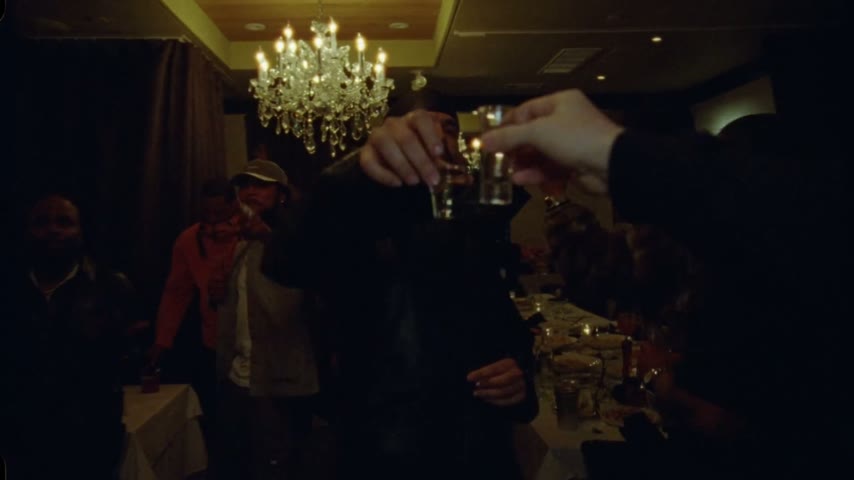
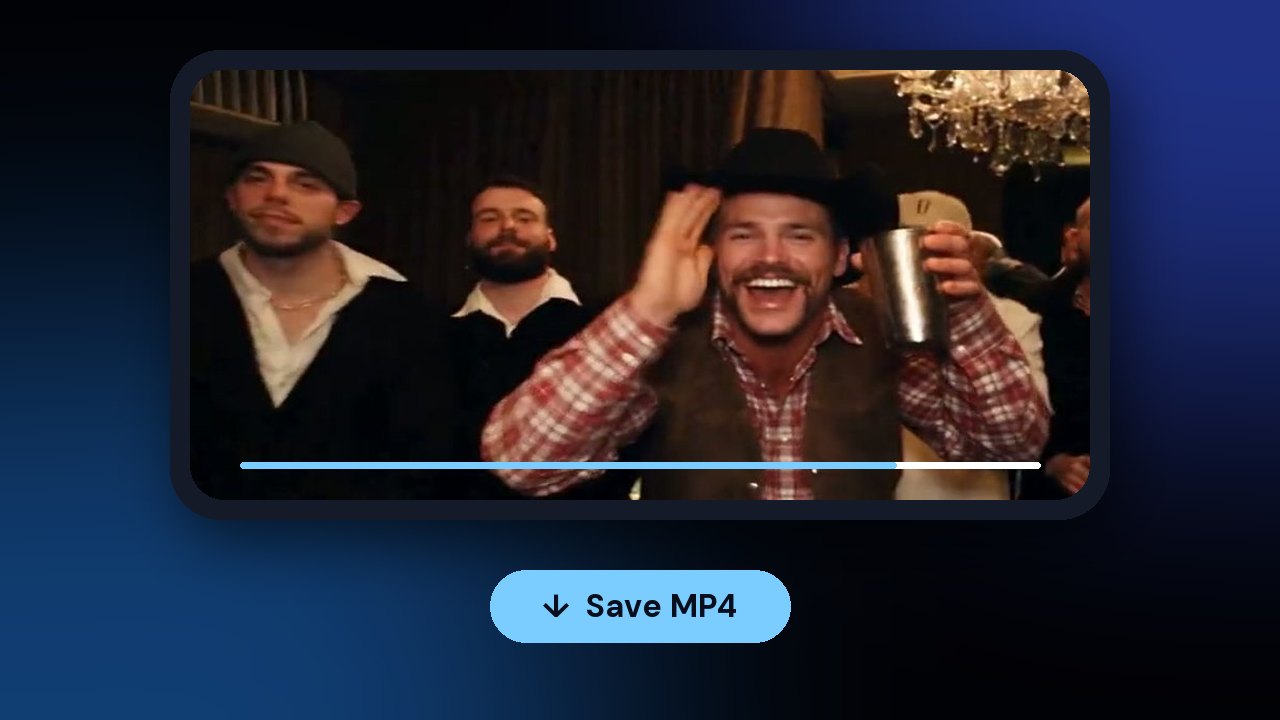
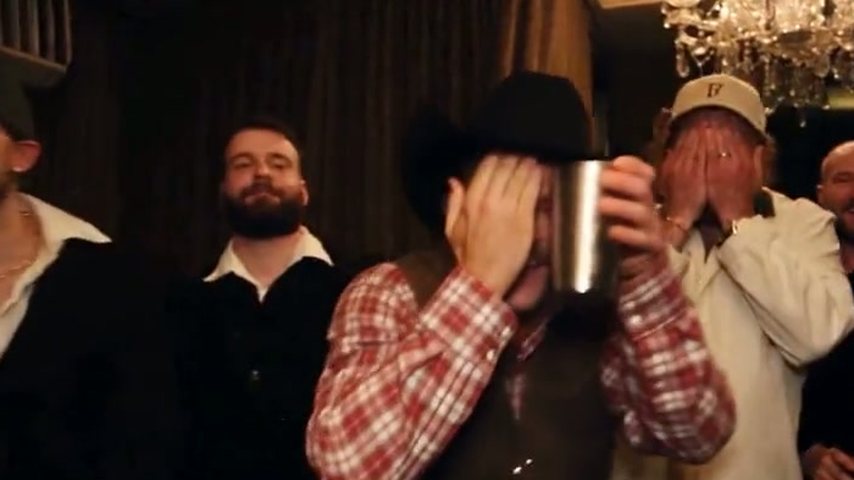
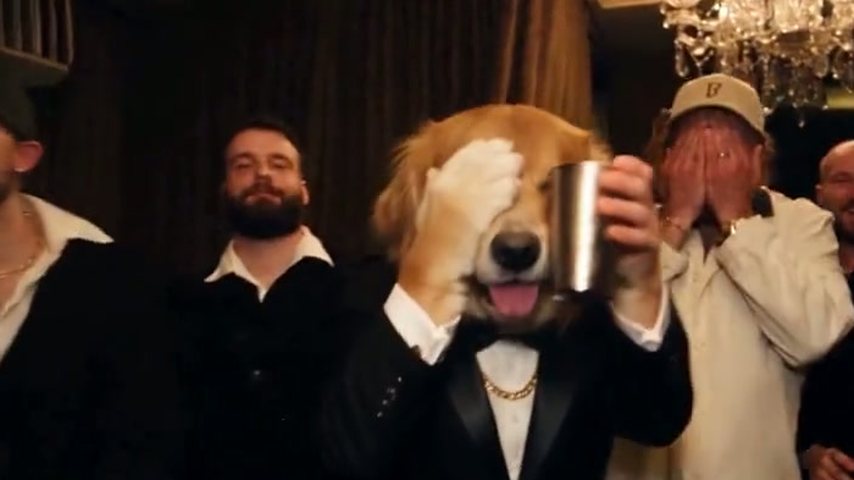
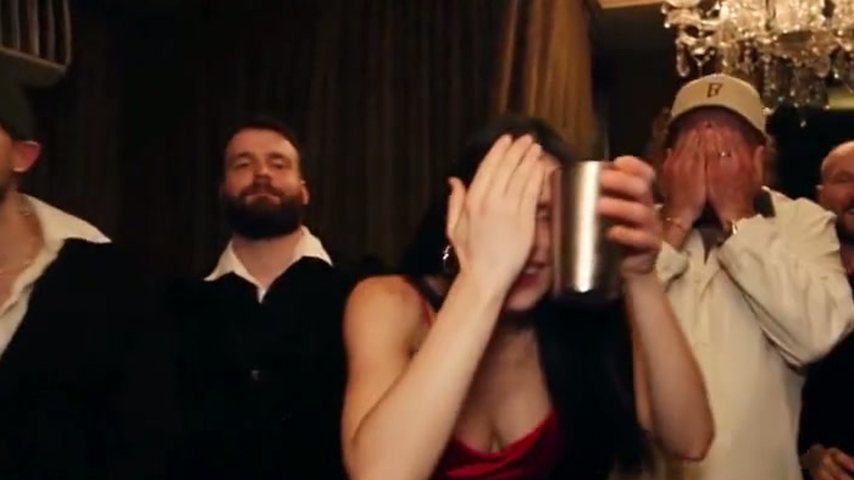
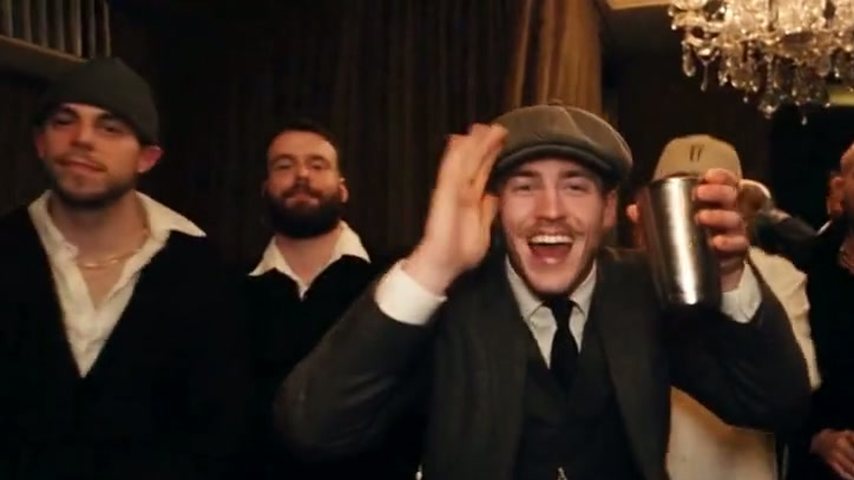
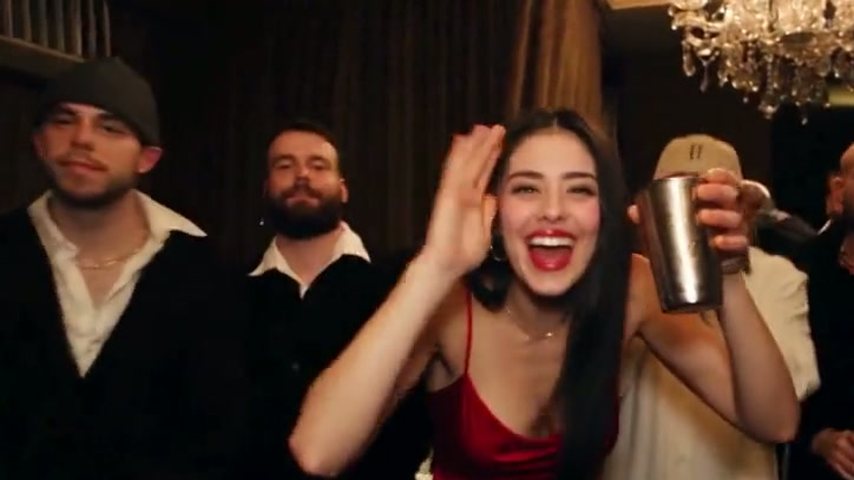
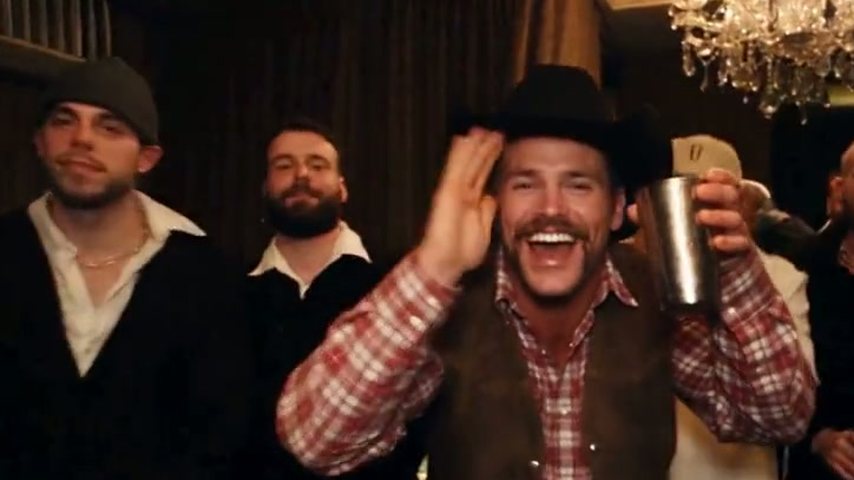
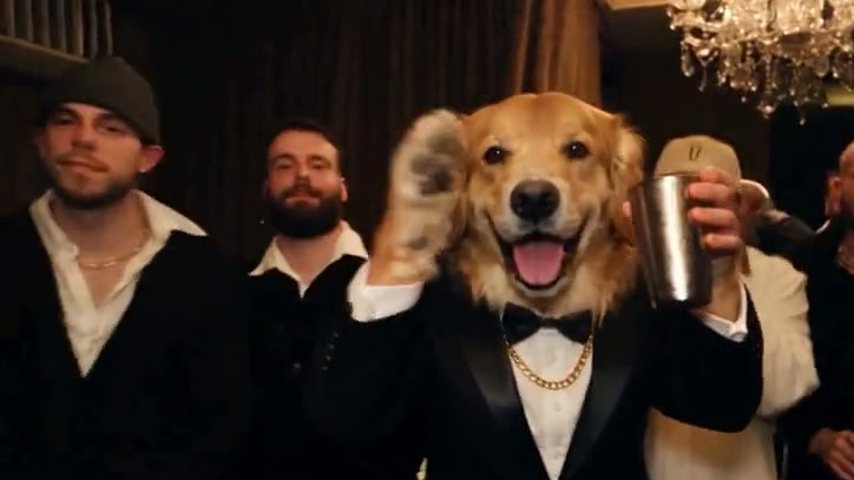
Learning how to make Drake AI video remakes starts with what the Drake AI video generator changes. It holds a recreated "Burning Bridges" party: the chandelier-lit dining room, the handheld camera, the choreography and stand-in guests. From the opening frame to the final wave your photo plays the lead; room, crew and camera never change. You call the friends over, cover your eyes for the "where she at" look and lift the silver cup.
- A phone with a browserAny browser on your phone; no app to install. A computer works too.
- One photo in your camera rollOnly you in the frame, face bright and sharp; best framed from the hips, with both hands in the picture.
- Permission to use itYours, or a consenting friend's. The filter blocks anyone famous, public figures included; a pet may work.
- Credits on your accountNo free trial. Each video spends credits; renders that error out or get filtered hand them all back.
How to make Drake AI video, step by step
For every step we point out the decision that matters most. To see the finished scene beat by beat first, open Burning Bridges AI.
Step 1: pick the right shot in your gallery
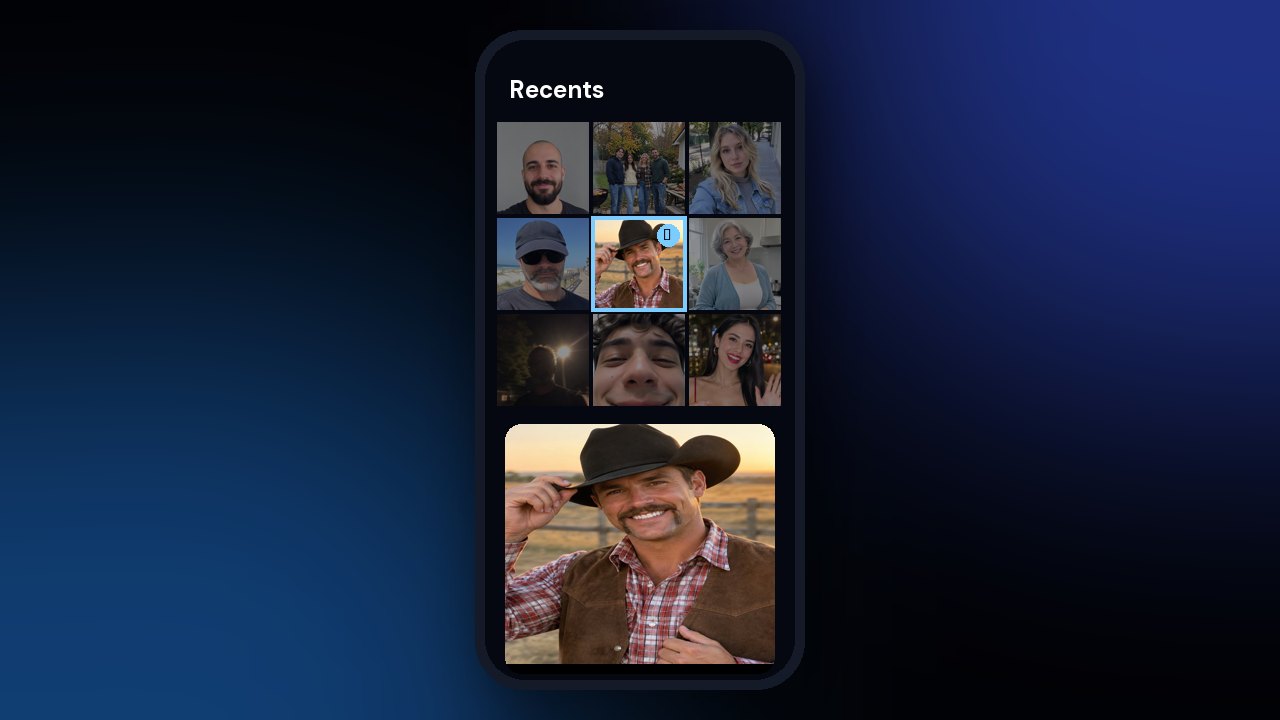
In the generator, tap Upload and choose a solo picture of yourself, lit well and looking at the lens. Frame it from the hips up so both hands show: your hands and wrists are rebuilt from this image, and in the scene you reach out, shade your eyes and grip a cup. Crop any friends out first.
Step 2: decide on length and sharpness
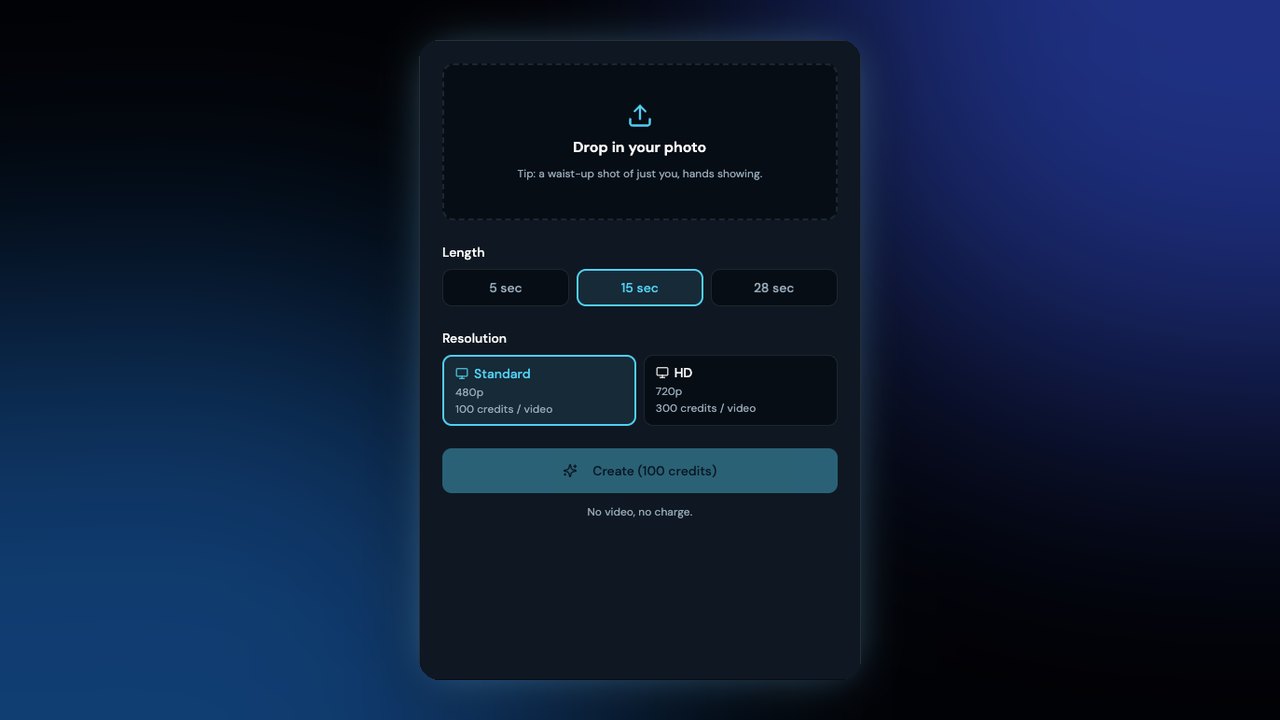
Five seconds holds only the "where she at" beat and comes in Standard alone. Fifteen is the stretch most people recognise, the camera close on you until the wave. Twenty-eight covers the whole party sequence. Standard (480p) is made for phone screens; HD (720p) suits a laptop or TV. Then tap Generate.
Step 3: wait, then save it on your phone
A 5-second render needs roughly 3 minutes; longer ones take 5 to 10. Play it once to see how your face holds up through the camera swings and how the cup hand looks, then save the file to your phone.
Which length and quality to choose
Every length arrives as a 16:9 MP4 carrying the song heard in that stretch of the music video. A longer clip or HD costs more credits; AI Drake Video pricing lists every plan and credit pack.
5 seconds, 480p only
Reaching out to the crew through the cup-and-wave finish. Uses 35 credits; a good first try.
15 seconds, 480p or 720p
The close-up stretch the trend copies (2:42 to 2:57 in the music video), ending on the wave. Counts as one Standard video; in HD it counts as three.
28 seconds, 480p or 720p
The full party run, from about 2:38 to 3:05. Counts as three Standard videos, or six in HD.
Photo tips
Seven quick checks for the photo
Weak results usually trace back to the picture, not the settings. Compare yours with these first.
Photos that work

Head to waist, both hands
Visible hands keep the cup grip and the wave convincing.
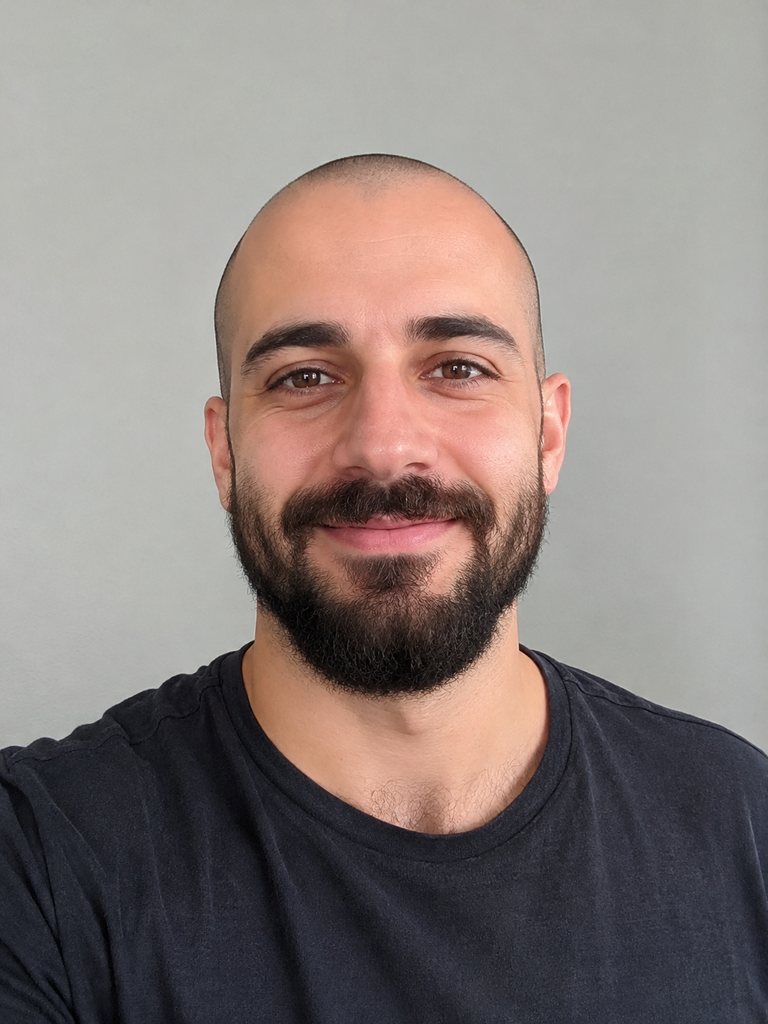
Light from the front
An evenly lit face stays recognisable as the camera swings.
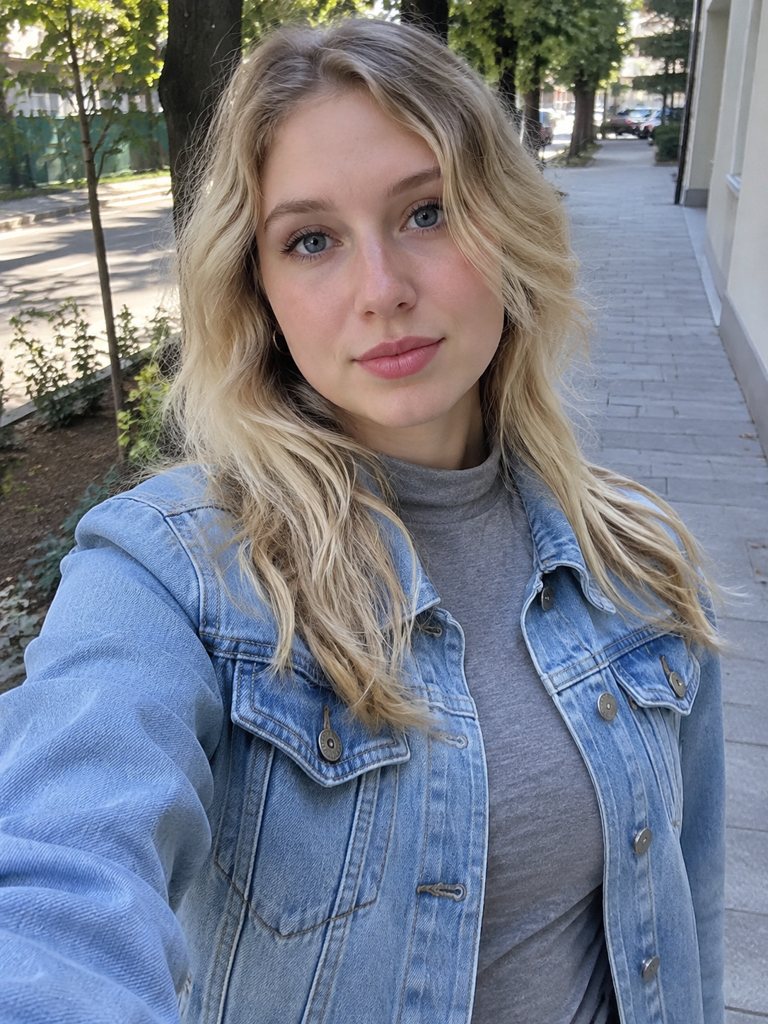
Just you, facing the lens
A lone subject facing the lens leaves no doubt about who leads the party.
Photos to retake
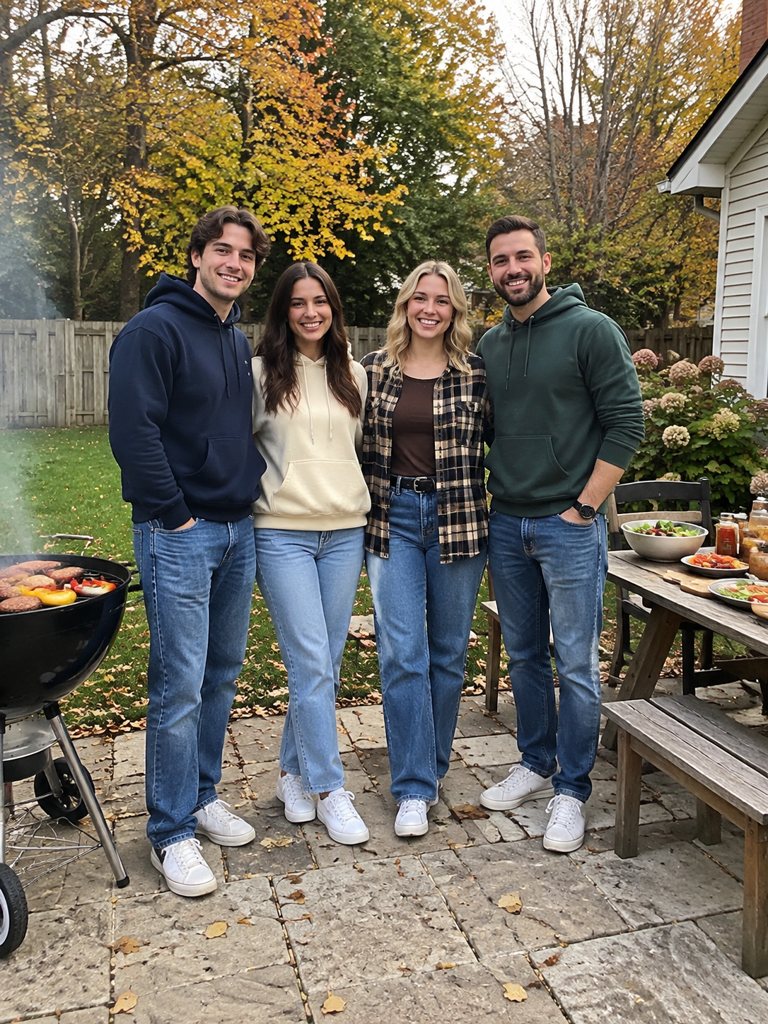
A group shot
Four faces leave the AI guessing who takes the lead.
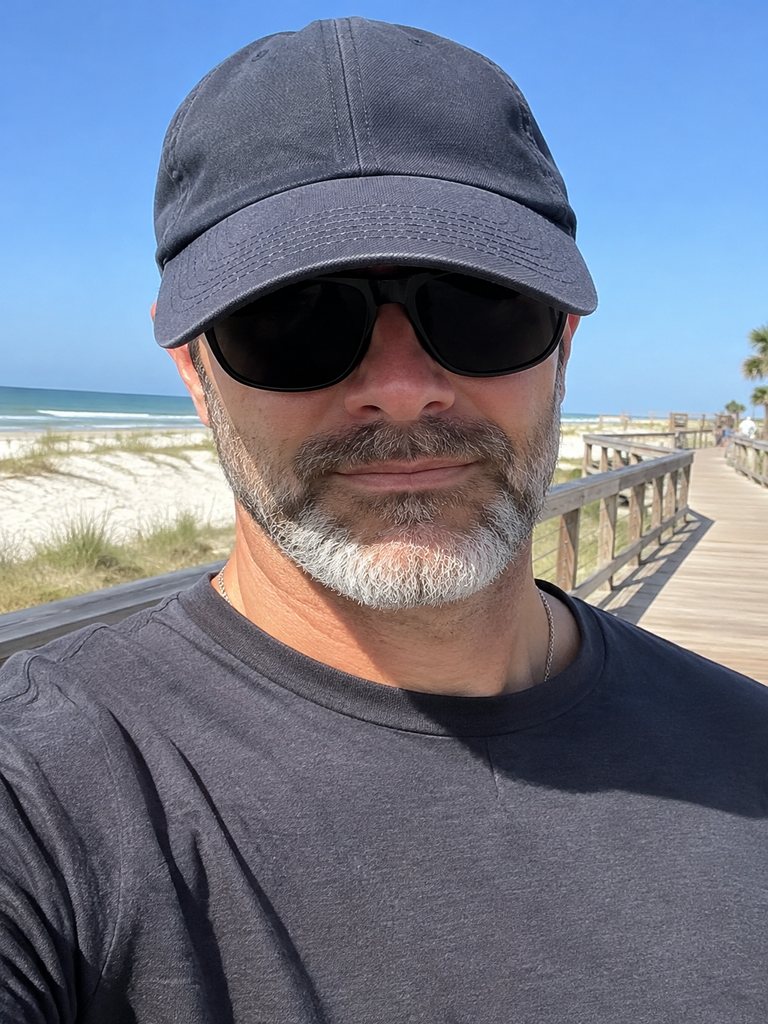
Shades and a cap
Covered eyes and a shadowed brow make the face flicker.
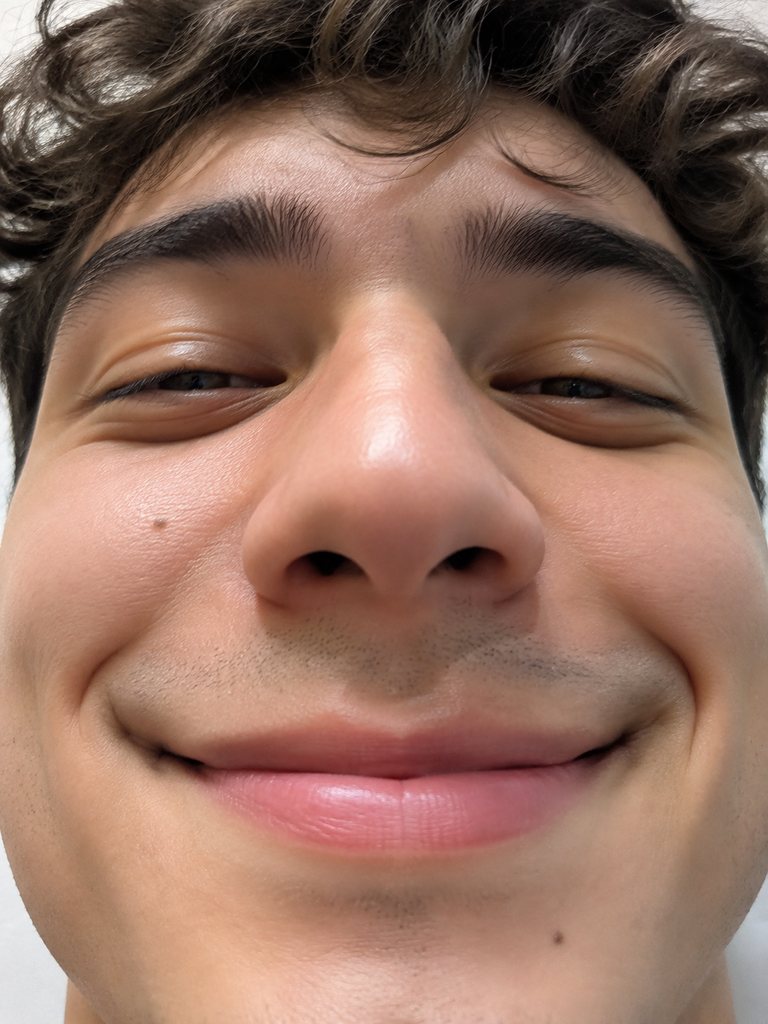
Cropped too tight
Crop off the shoulders and hands, and the AI has to make up your body and gestures.
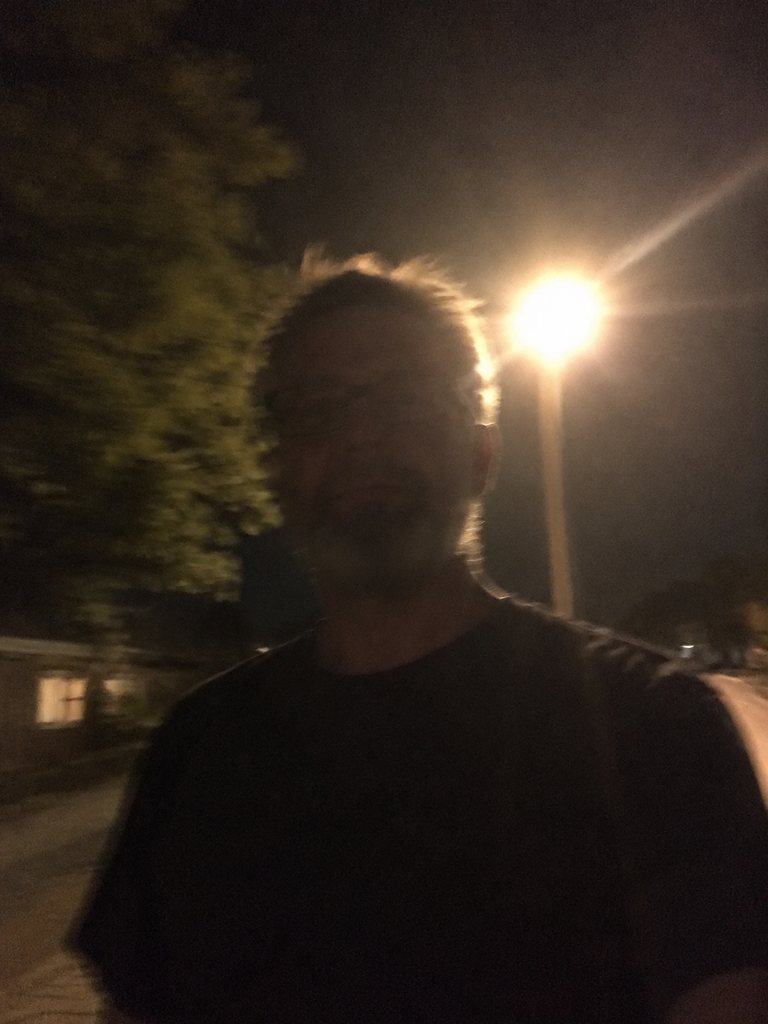
Dark or shaky
Dim rooms, backlight from a window or motion blur leave too little detail.
Before you post: widescreen framing and audio
The MP4 keeps the 16:9 frame of the music video, which leaves the chandeliers and crew visible; it is not cropped to vertical and uploads as it is. For caption ideas, see how people title their Drake AI meme versions.
TikTok
Upload the file as it is, song included. TikTok may recognise the track; plenty of people swap in the official "Burning Bridges" audio instead.
Instagram Reels
Post the same MP4. Instagram may detect the music too, or let you pick its own track.
YouTube and Shorts
Shorts or a regular upload; the 28-second version makes the better standalone video.
X
Attach the MP4 and write your own line about who crashed the party instead of quoting the song.
Friends in the video
If the photo shows someone else, ask before tagging them in public.
More guides
Read before or after your first render.
How to make Drake AI video: common questions
How to make Drake AI video on iPhone or Android?
There is no app; the site runs in your phone's own browser. Sign in, pick one photo from your gallery, set 5, 15 or 28 seconds plus a quality, then hit Generate. Once it finishes, usually within minutes, download the MP4; X, TikTok, Reels and Shorts all take it as is.
How to make Drake AI video without a subscription?
A one-time credit pack works instead of a subscription; the 5-second clip, needing the fewest credits, is the cheapest start. No free trial exists, yet the samples and the photo tips are open to everyone at no charge. Burning Bridges AI free lists each check worth running first.
Is any prompt writing or editing involved?
No. The recreated scene, soundtrack and instruction are preloaded; your part is one photo plus a length and a quality. There is no footage to trim and no audio to sync. For the manual route with a general-purpose AI video tool, read how to make Burning Bridges AI video.
Why doesn't my face look right in the video?
Almost always because of the source picture. Sunglasses, a cap brim, hair across the eyes, side light or a crop that stops at the chin give the AI too little to hold on to while the camera moves. Shoot again facing the lens in even light, framed from the waist; should a render fail, its credits come back.
Should I keep the song in the file or add the TikTok sound?
Both are common. The MP4 already carries the song from that stretch of the music video, which TikTok or Instagram might detect. Many creators turn the original down and layer in the official "Burning Bridges" track picked inside the app. We cannot promise how a platform treats the music.
Does it use Drake's footage, and is it official?
No on both counts. The clip is the music video's party scene, recreated: same room, same camera moves, stand-in guests, with your photo in the lead. AI Drake Video is run independently by fans; neither Drake nor his label is affiliated with it. It makes video only, not AI voices or songs.
Your photo, the party, a few minutes
Picture, length, quality: give it a few minutes and the MP4 is on your phone.